Exam security options help operators control how participants enter, take, and finish an exam.
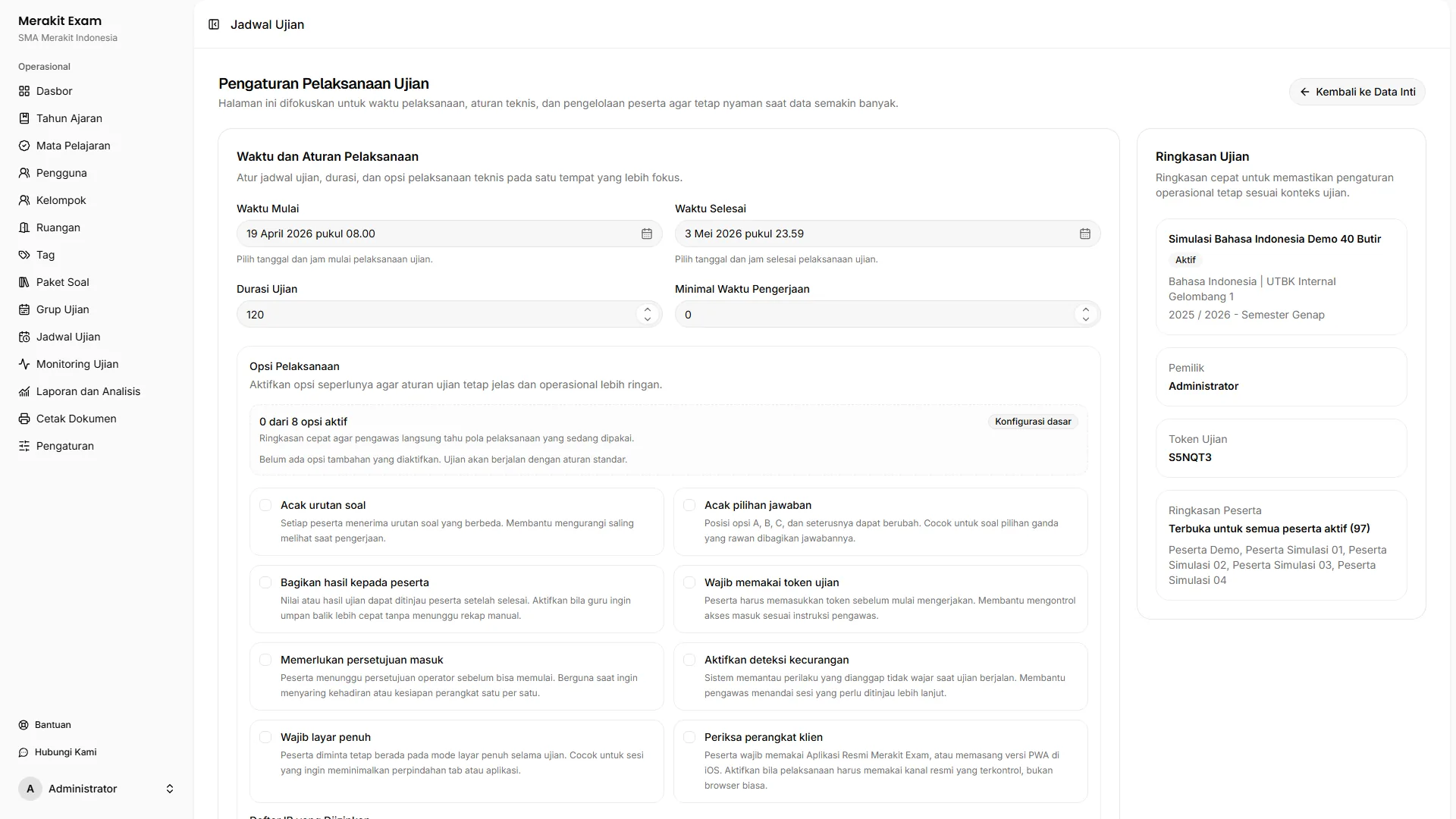
Entry Approval
Enable Entry Approval (“Persetujuan Masuk”) when participants should wait for an administrator or teacher before they can start the exam.
Typical flow:
- The participant opens the exam.
- The participant is placed in the awaiting approval status.
- The operator checks the participant from monitoring.
- The operator approves the participant.
- The participant starts the exam.
This feature is useful for in-person exams or exams that require control by the exam committee.
IP Restriction
Use IP Restriction (“Batas IP”) when an exam may only be started from specific networks.
- Use it to limit the exam to the school network.
- Make sure the IP list is correct before the schedule opens.
- Prepare a support procedure in case a participant’s network changes.
If a participant is held at the checkpoint, one possible cause is that their IP does not match the rules.
Client Check
Client Check (“Pemeriksaan Client”) helps detect changes to the browser identity or network while the exam is in progress.
Use this option when your institution needs additional control over exam sessions. Operators should be aware that changes in device, browser, network, or certain technical conditions may mean a participant needs follow-up.
Fullscreen Mode
Fullscreen Mode (“Mode Fullscreen”) helps reduce distractions while participants answer questions.
- Inform participants before the exam starts.
- Make sure participants’ devices support fullscreen mode.
- Prepare instructions in case a participant accidentally exits fullscreen.
Minimum Duration
Minimum Duration (“Minimum Durasi”) prevents participants from finishing the exam too quickly.
Example uses:
- For a 90-minute exam, participants may only submit after 30 minutes.
- A try out requires a minimum reading time before participants can submit their answers.
Set the minimum duration according to your exam policy and the difficulty of the questions.
Recommended Usage
Not every option needs to be enabled for every exam. Use the combination that fits the risk and context.
| Context | Commonly Used Options |
|---|---|
| Supervised classroom exam | Entry approval, fullscreen, minimum duration. |
| Exam in a school computer lab | IP restriction, entry approval, fullscreen. |
| Flexible try out | Minimum duration, client check when needed. |