Setup and master data are the foundation that must be in place before any exam can be scheduled. Complete this section first so that question banks, schedules, participants, reports, and printable documents all use consistent data.
Initial Setup
When a new installation is launched for the first time, open the setup page to enter the system’s basic information.
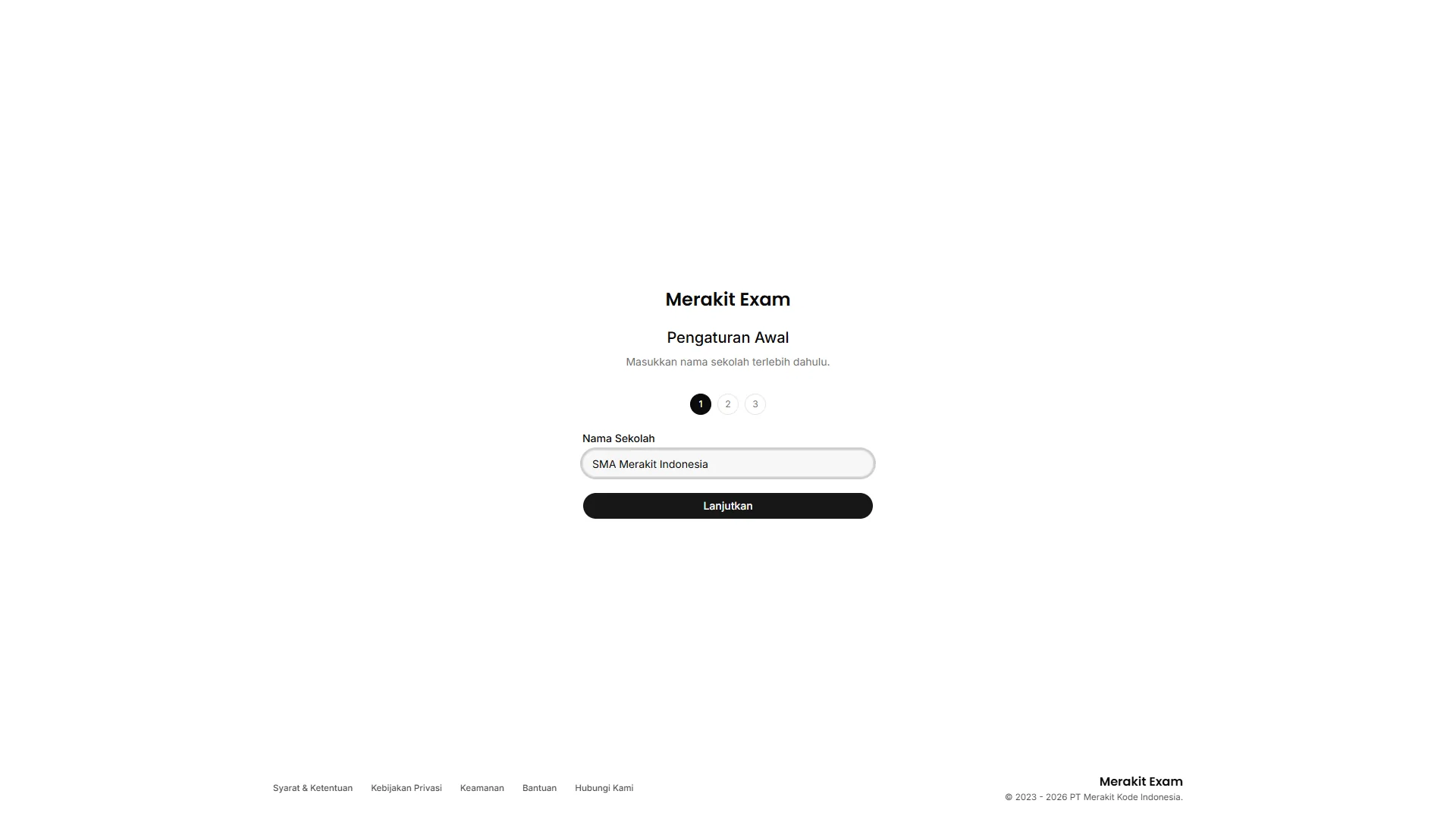
- Enter the name of the school or institution.
- Set the first active academic year and semester.
- Create the first Super Admin account.
- Once setup is complete, the system takes you straight to the dashboard so you can continue configuring.
- Use System Settings (“Pengaturan Sistem”) to update the institution name, address, active academic year, default participant card password, and support contact.
Academic Year
The academic year (“Tahun Ajaran”) defines the academic context of the data currently in use.
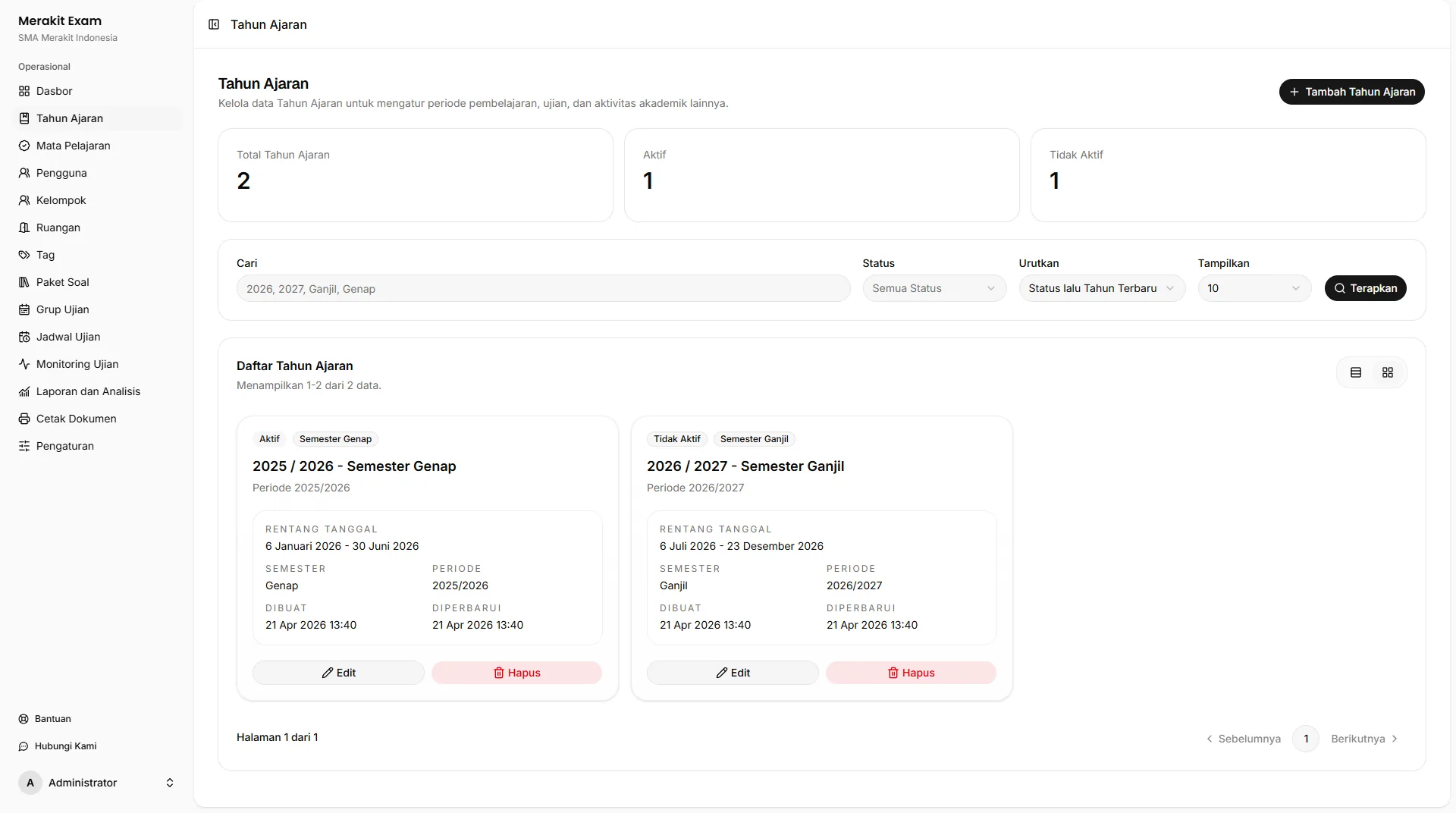
- Create the academic year before creating exam schedules.
- Make sure only one academic year is active.
- Check the active semester before a new exam period begins.
- Avoid changing the active academic year while an exam is in progress.
Subjects
Subjects (“Mata Pelajaran”) are used in question banks, exam schedules, and reports.
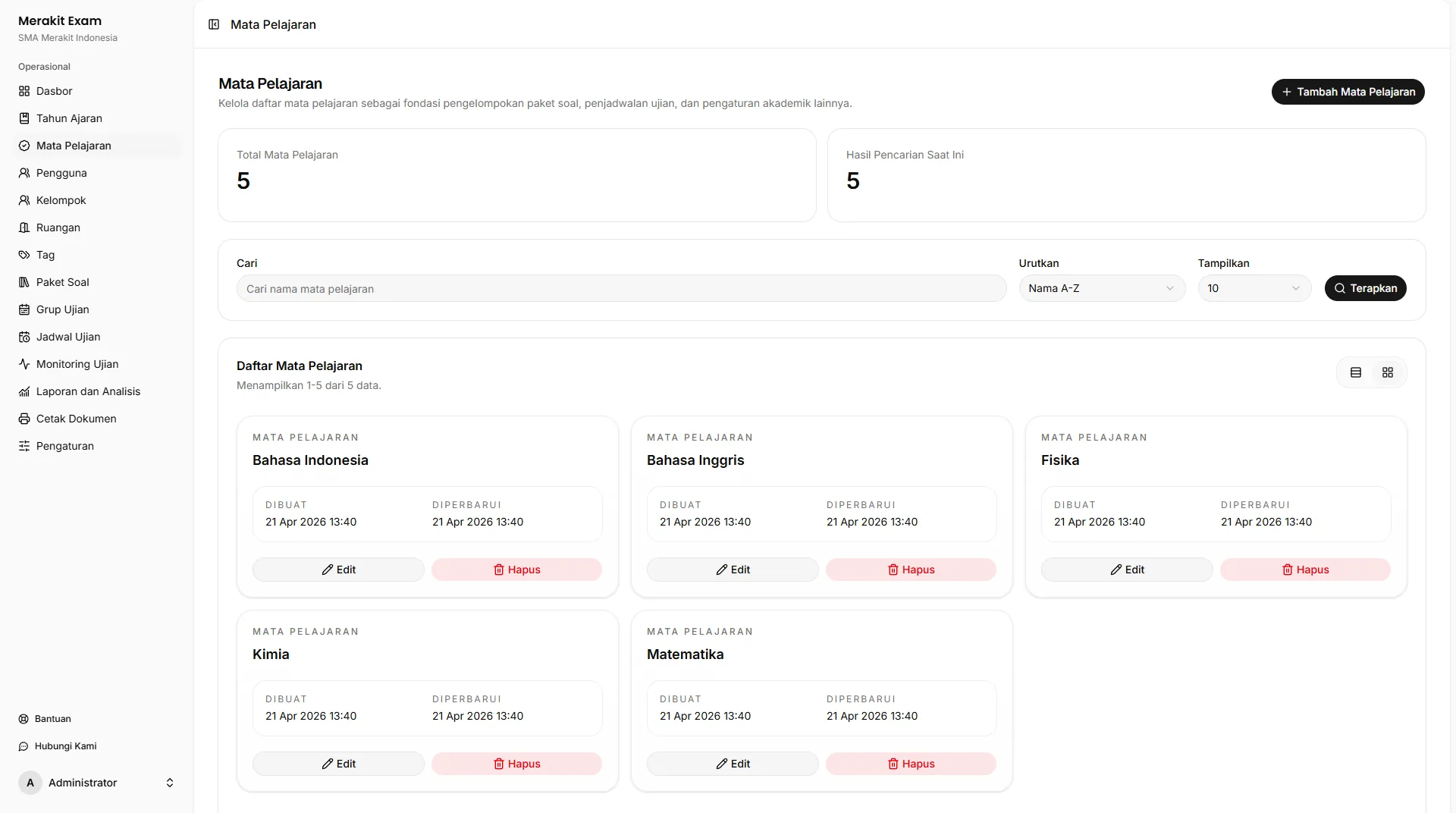
- Add subject names according to your institution’s standards.
- Use consistent naming so subjects are easy to find.
- Deactivate old entries that are no longer in use.
Users
Manage accounts for Super Admins, Administrators, Teachers (“Pengajar”), and Participants (“Peserta”) from the Users (“Pengguna”) page.
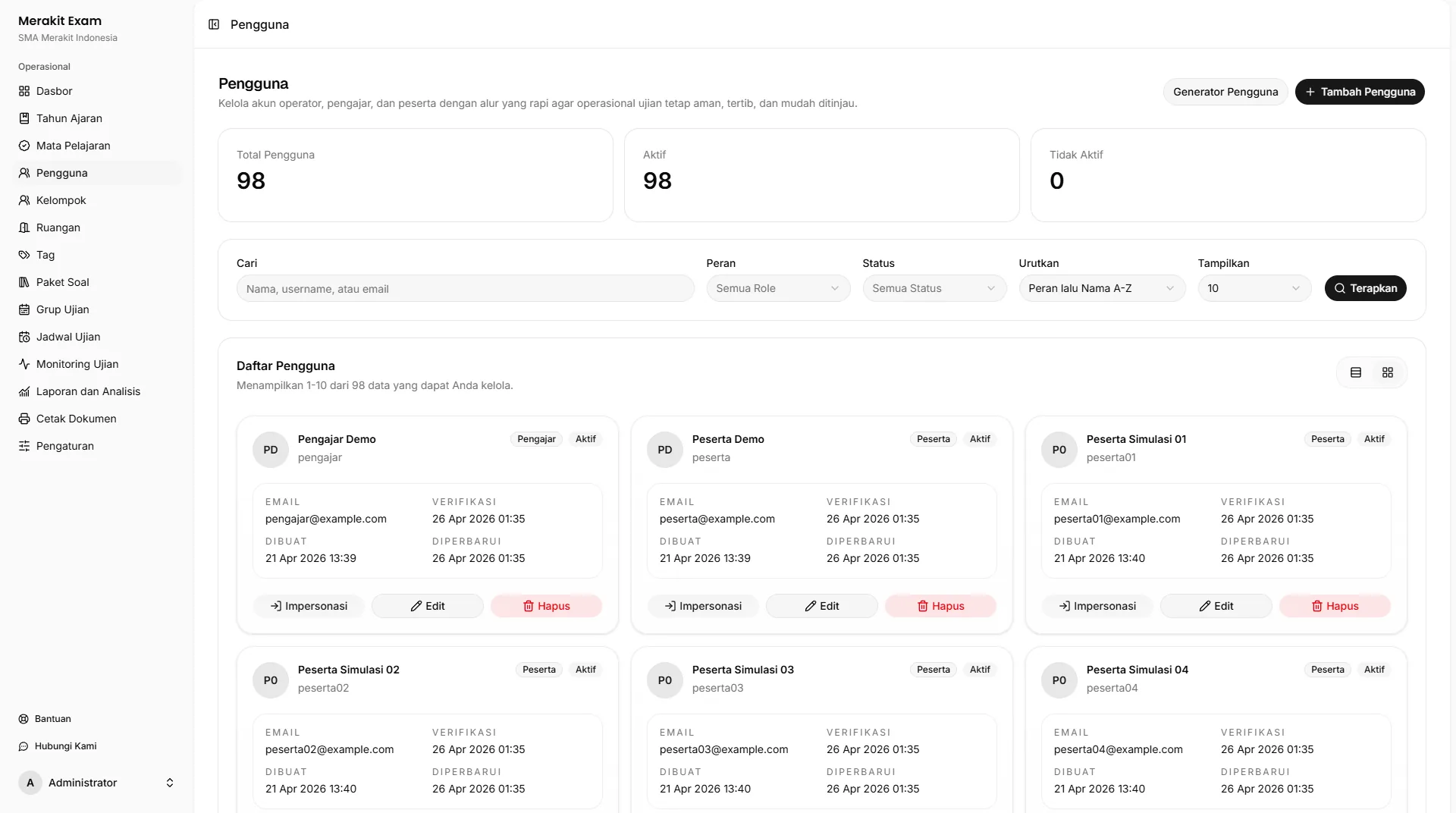
| Role | Main Access |
|---|---|
| Super Admin | Manages the entire system, initial setup, accounts, operational settings, system reset, and observability access. |
| Administrator | Manages academic data, users, participant structure, exam schedules, reports, and operational documents. |
| Teacher | Manages question banks, the schedules they are responsible for, participant monitoring, reports, and printable documents. |
| Participant | Accesses assigned exams, passes the checkpoint, takes exams, and views results when they are shared. |
Participant Groups
Participant groups (“Kelompok”) are used for classes, study groups, programs, or any other way of segmenting participants.
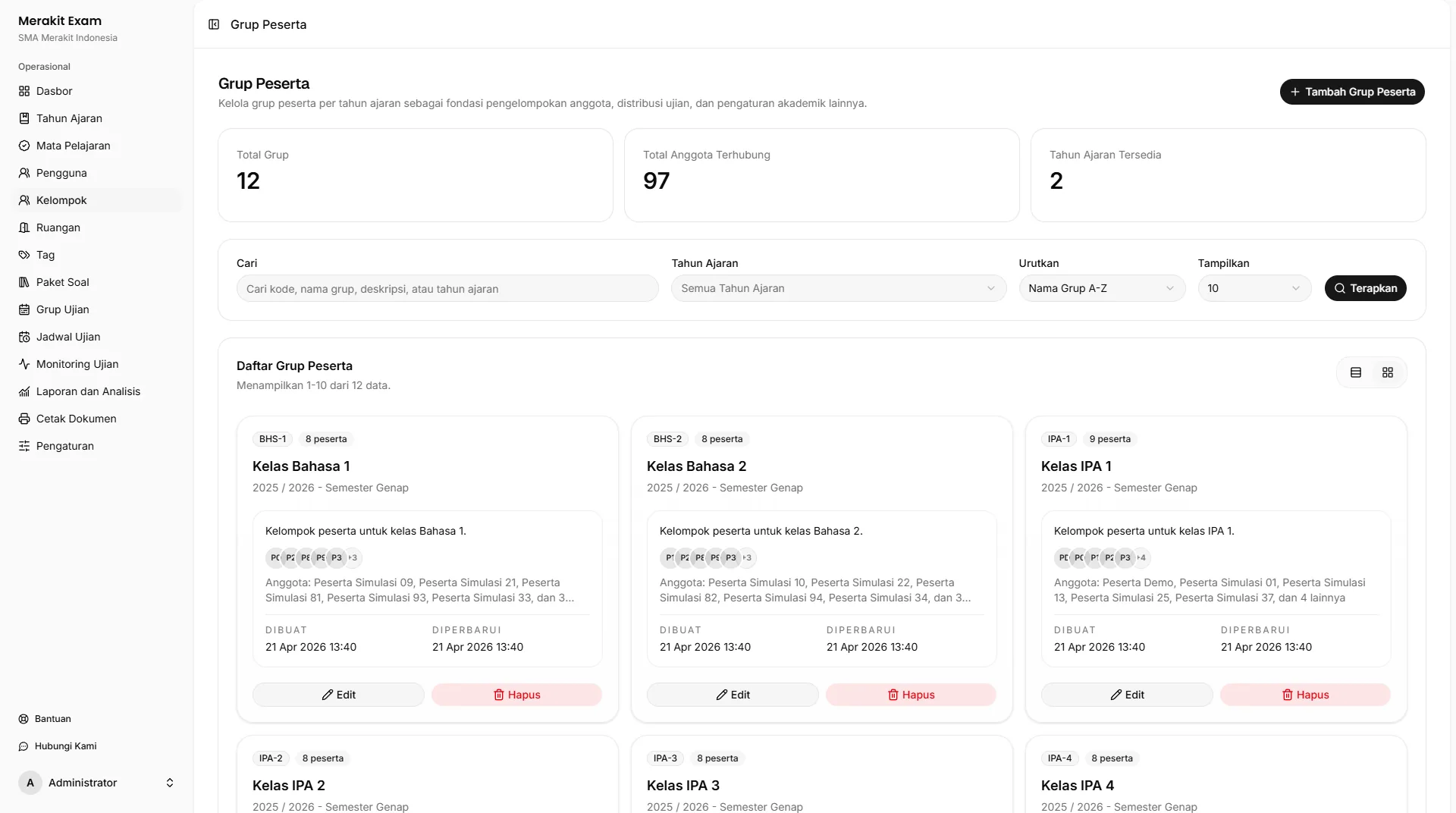
- Create groups before defining participant rules on a schedule.
- Assign participants to the correct groups.
- Check that participants are active so they are counted in schedule rules.
- Use groups as the main filter in monitoring, reports, and printable documents.
Rooms
Rooms (“Ruangan”) support the logistics of in-person exams.
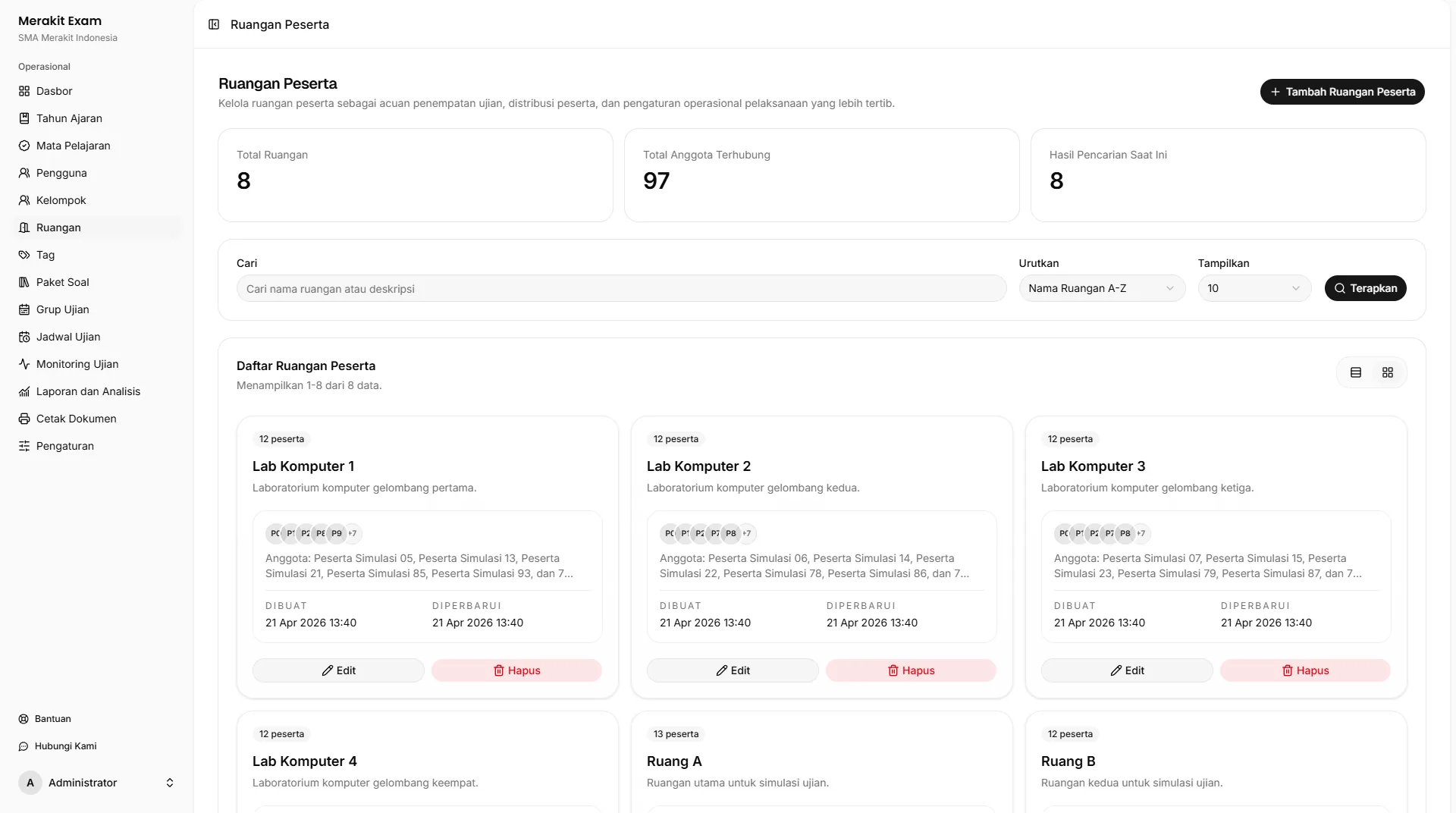
- Add the rooms the exam committee will use.
- Assign participants to rooms according to the exam seating plan.
- Double-check room assignments before printing room numbers, seat numbers, and attendance lists.
Tags
Tags (“Tag”) provide additional segmentation beyond participant groups.
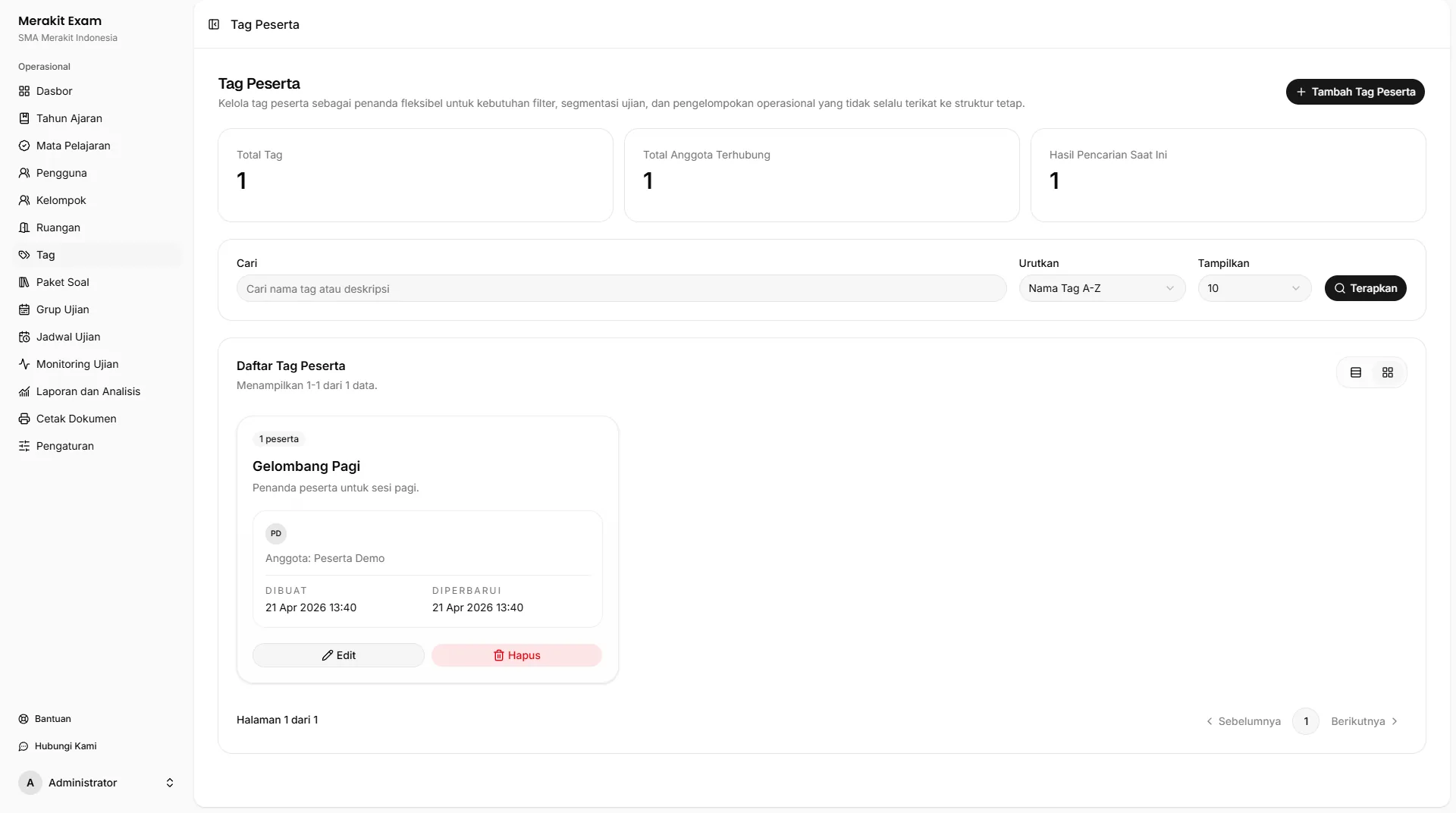
- Use tags for waves, sessions, special needs, or make-up exam participants.
- Tags can be used in participant include and exclude rules.
- Keep tag names short and easy for operators to understand.
Checklist Before Moving On
Before creating question banks and schedules, make sure that:
- The active academic year is correct.
- Subjects are available.
- Teachers and participants have active accounts.
- Participants are assigned to the correct groups.
- Rooms are ready if printable documents are needed.
- Tags have been created if participant rules require additional segmentation.